01 / Hauling
Track haul tickets.
See the truck, capacity, load call, and payable yardage on each haul ticket.
On its page
- See haul ticket examples.
Software for storm debris contractors
Keep haul and cut tickets, contractor comparisons, agreements, payment records, and supporting documents tied to the same project—so you can trace the work from the field record to the amount owed.
Rather look around on your own? Create an account
For prime contractors, subcontractors, and the teams handling the paperwork.
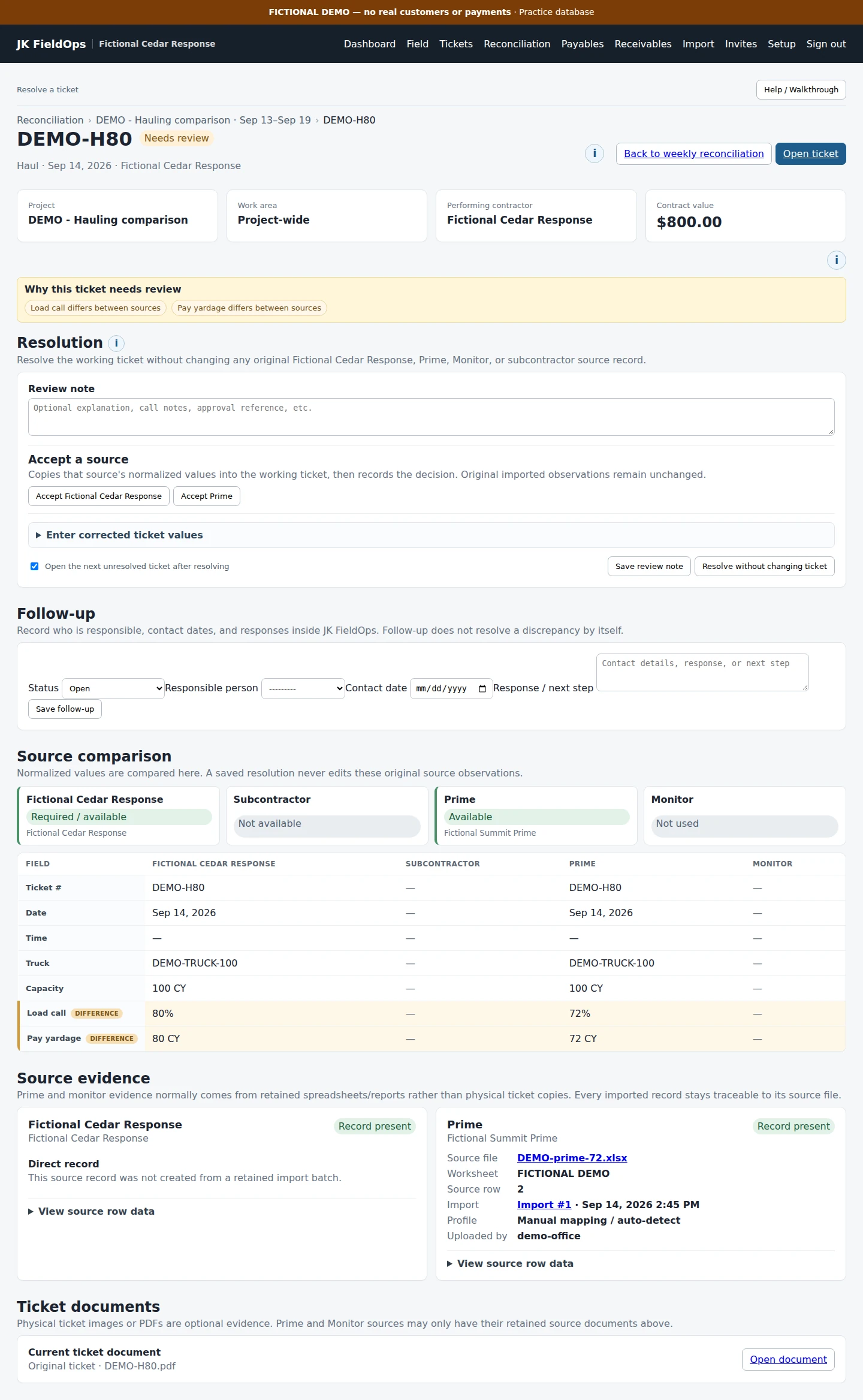

Pick a part of the job. Each card opens its own page with the full explanation, screenshots, and examples.
01 / Hauling
See the truck, capacity, load call, and payable yardage on each haul ticket.
On its page
02 / Tree work
Review hanger, leaner, and hazardous-tree tickets with measurements, rates, and pictures.
On its page
03 / Payments
Follow money received from the party that hired you and payments owed to the subcontractors you hired.
On its page
04 / Agreements & documents
Send agreements for signature and keep invoices, confirmations, and releases with the job.
On its page
05 / Uploads
Upload ticket photos and PDFs from the field, or import CSV and Excel spreadsheets.
On its page
06 / Reconciliation
Put your tickets beside prime, monitor, and subcontractor records, and record each decision.
On its page
07 / Projects & subcontractors
Each company follows the work in its part of the job and sees only what its role allows.
On its page
08 / Equipment
Record trucks and equipment with each project’s certification number, placard, and document.
On its page
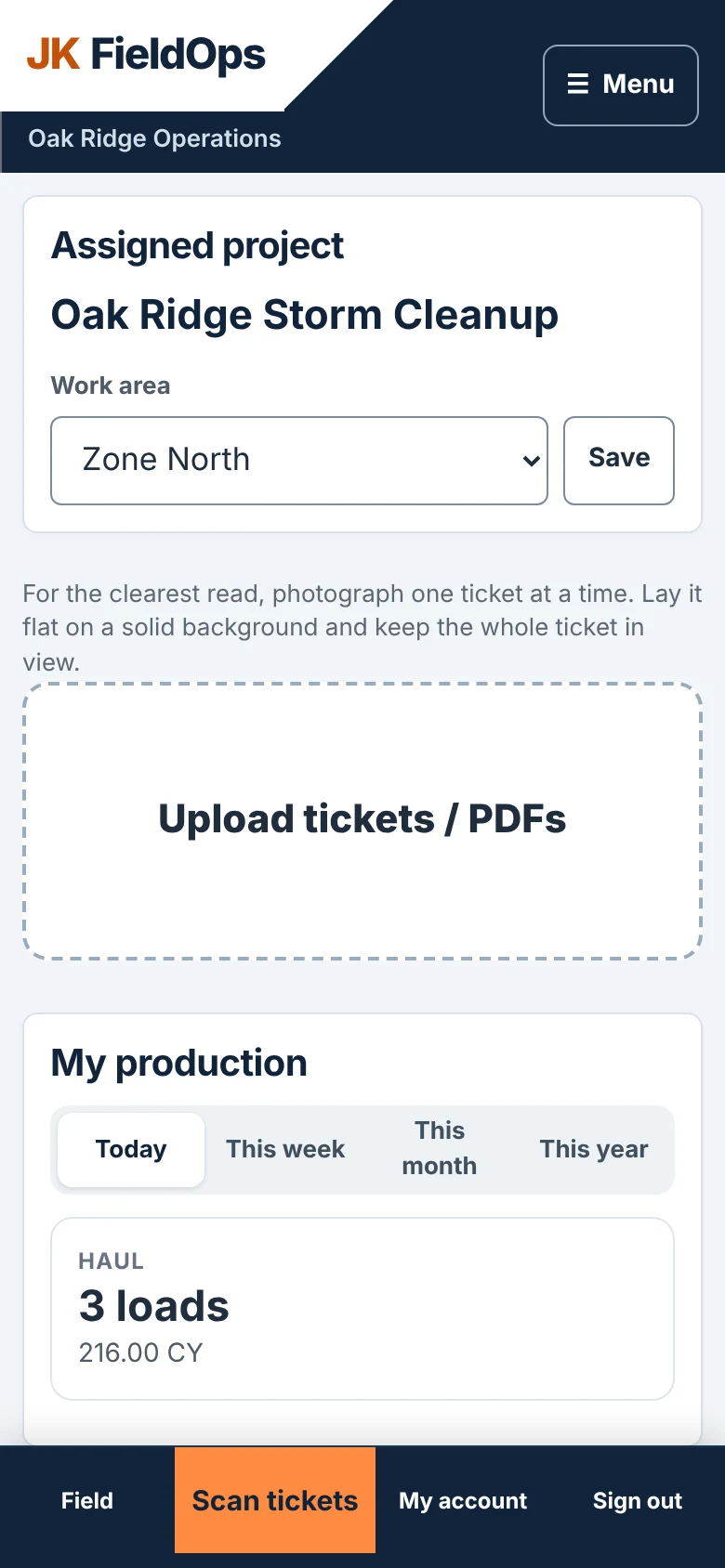
Drivers and operators can upload tickets from their phones as soon as they receive them instead of carrying a stack back to the office.
For hauling, photograph or choose the ticket file and get the load record into review while trucks are still moving. For tree work, crews can submit cut-ticket records and supporting documents from the field.
The Field page shows submitted haul loads, yardage, cut tickets, and items pending review. Adding another copy of an existing ticket does not count the work again.
JK FieldOps reads ticket information from the attachment and uses the available project setup, so field users do not have to retype every ticket.
Put on your phone:
Needs an internet connection to upload tickets.
The paperwork is not just paperwork when it is the record you need to explain a payment difference.
I built JK FieldOps after spending too many nights catching up on paperwork after a full day in the field.
My days were spent cutting, hauling, and keeping crews and subcontractors moving. Then I’d head back to a hotel or camper and spend the night entering tickets, building spreadsheets, and checking work zones and crew records. The next morning, it all started again.
But the real problem was not the typing. It showed up when our pay did not match our records. I had to dig through thousands of tickets, compare the numbers, and track down the original or scanned copy just to explain why our number was different.
The records were there. Proving what happened could still take hours.
That is why I built JK FieldOps—to keep tickets, production records, reconciliation, payments, and supporting documents together, so contractors can check what was done, understand what is still owed, and find the records that back up the number.
Being able to prove what you’re owed is what matters.
Jerome — Founder, JK FieldOps
Yes. Haul tickets show truck, capacity, load call, and yardage. Cut tickets show service, measurement, and value based on the project’s rates.
Yes. Drivers and field crews can take a photo or choose ticket photos and PDFs already on their phone and upload them from Field as soon as they receive them. Haul and cut records can start moving into review while the job is still active.
No. JK FieldOps currently requires an internet connection to upload and sync records. If service is unavailable, keep the ticket or photo and upload it when connectivity returns.
Yes. Upload photos and PDFs from Field. Use Import for CSV and Excel files, and match the spreadsheet columns to ticket fields.
If it matches an existing ticket, another copy can be attached without adding the work again. Identical copies can be skipped. Different or missing details may need review.
Missing, unclear, or conflicting information can be sent to review instead of being silently treated as final. The office can check the attachment, fill in missing information, and resolve the record.
Open Reconciliation to see the difference. Check Source evidence, accept a source, enter a correction, or save a review note. The original imported records are kept.
JK FieldOps keeps the ticket record, contractor comparisons, source evidence, reconciliation decisions, recorded payments, deductions, and supporting documents connected. That makes it easier to explain how your records reached a number and to find the paperwork behind it. JK FieldOps organizes the evidence; it does not determine contractual entitlement or guarantee payment.
Yes. Your company can track its own tickets, production, payments, agreements, and documents without other parties using JK FieldOps. To reconcile with another company or monitor, you need their records in the program—either entered by them or obtained and imported by your team.
No. They see the project tickets their role allows for their company and companies working under them—not unrelated contractors. Their Payments page shows payments to their own company, not payments to other subcontractors.
Request a demo to discuss your work and see the program, or email contact@jkfieldops.com.

Tell us whether you handle hauling, tree work, or both—and where tickets, contractor records, or payment numbers become difficult to verify.
What happens next: Send your company name and what you want to see. We’ll reply by email to plan the demonstration and discuss getting started.
Rather start on your own? Create an account and look around while we approve your company.
Questions? Email contact@jkfieldops.com.